

2D Designer Tool · Updated 24 Sep 2026
Apparel Artwork Templates
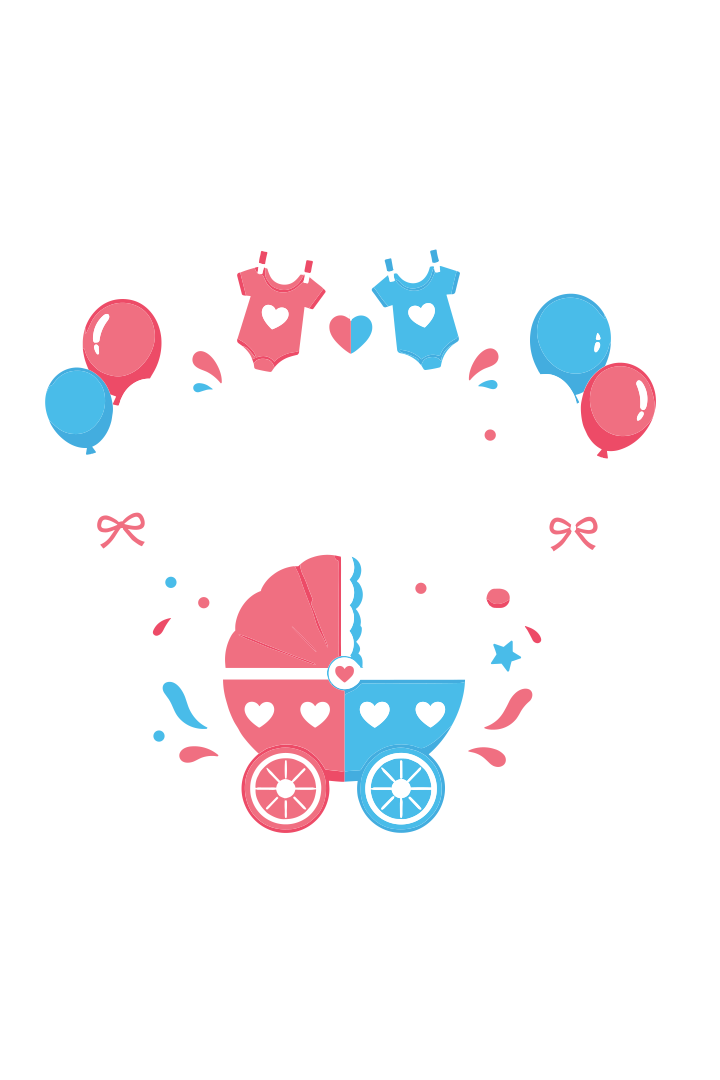
How to create ready-made artwork (SVG) that shoppers personalise on t-shirts, hoodies and other apparel. There are no 3D files: you only supply the artwork. Every template follows the structure of our reference file, Baby Shower.svg.
1Before you start
A template is one SVG made of two parts: live text the shopper can change, and flat vector shapes that make up the artwork. The garment colour shows through everywhere else.
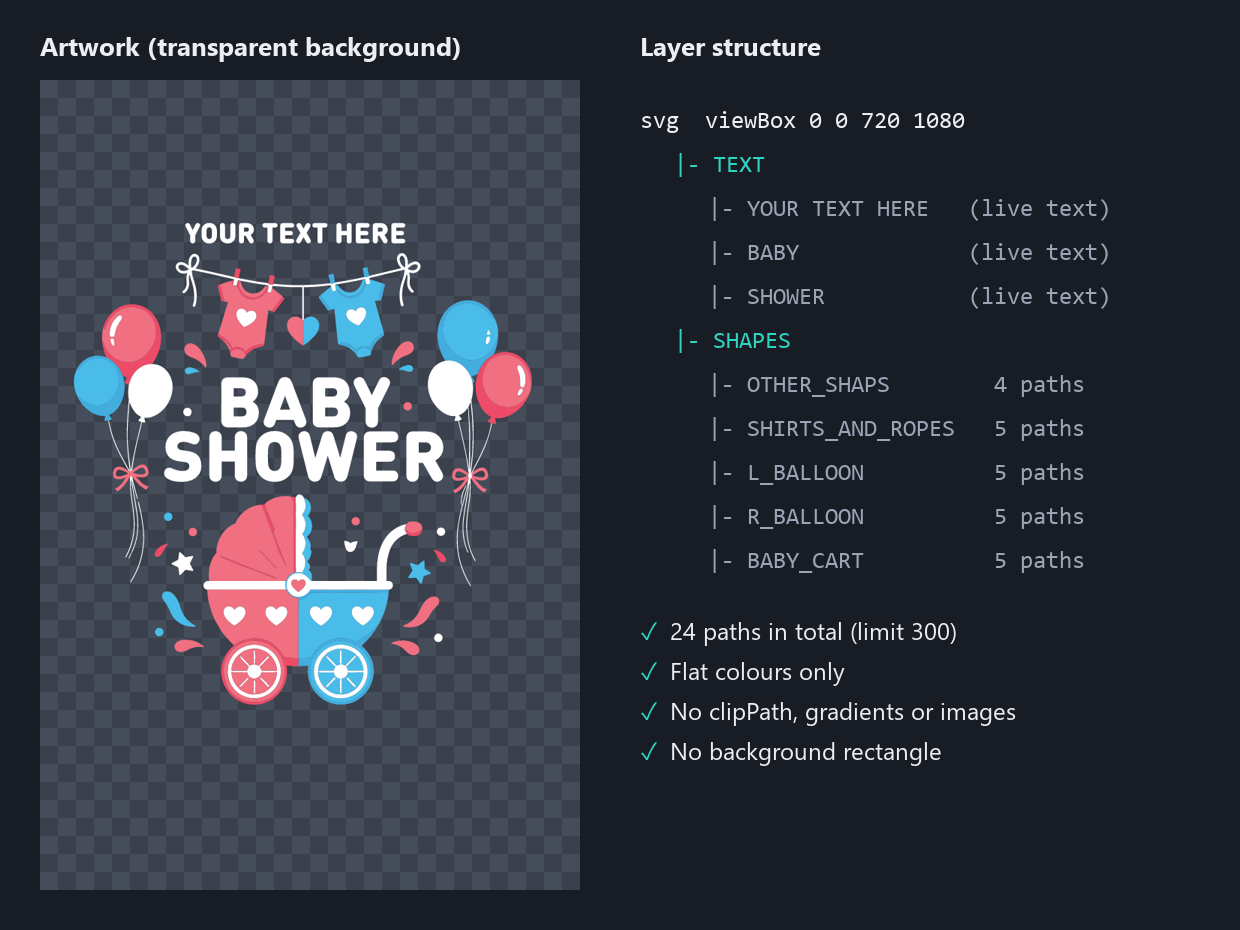
TEXT group with the live text, and a SHAPES group split into named artwork groups. 24 paths in total.- Canvasprint-area ratio
- Draw artworkflat colours
- Group itTEXT + SHAPES
- Merge pathsone per colour
- Save & checktext editor
One template fits one print area. For a design on the front and the back, make one SVG for each and name them as a pair (baby-shower_front.svg, baby-shower_back.svg).
2Prerequisites and required settings
Software
- Adobe Illustrator for designing.
- A text or code editor (VS Code, Notepad++) to check the saved SVG.
Settings to use every time
| Setting | Required value |
|---|---|
| Canvas | viewBox only, in px, in the print area's proportions (reference: 0 0 720 1080, a 2 : 3 portrait) |
| Background | Transparent; no background rectangle |
| Top-level groups | TEXT and SHAPES |
| Artwork groups | Inside SHAPES, one group per artwork element, CAPITALS with underscores (L_BALLOON, BABY_CART) |
| Paths | At most 300 per file; one compound path per colour in each group |
| Colours and fonts | Plain attributes: fill="#49bce9", font-size="93.72", no <style> |
| Not allowed | Gradients, mesh gradients, clipPath, masks, images, filters, nested layers beyond the two levels |
3Create the artwork SVG
- Set the canvas. File → New, units Pixels, in the proportions of the print area. The reference is 720 × 1080 px (2 : 3, portrait), which suits a full front or back. Use Color Mode RGB.
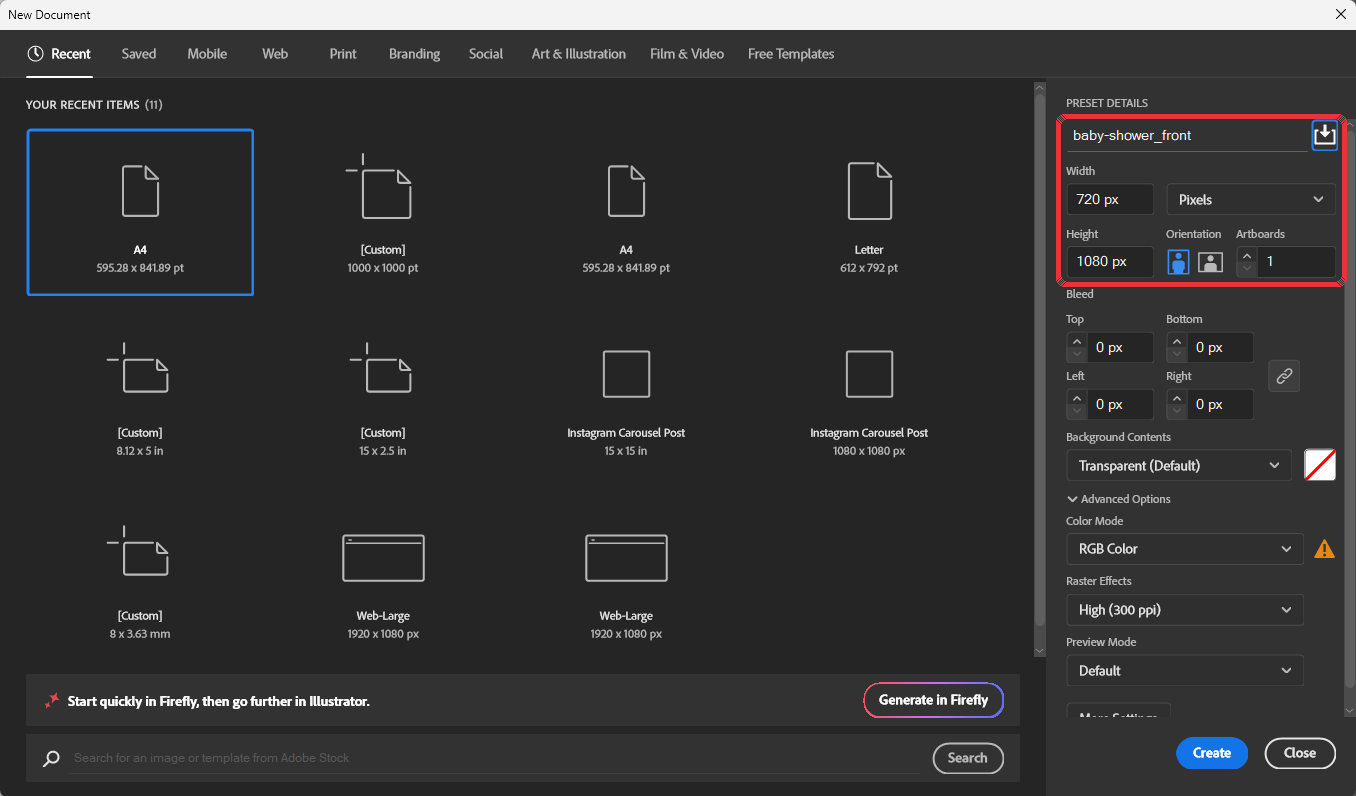
File → New: name, 720 × 1080 px, units Pixels, Color Mode RGB. - Draw with flat colours only. Every shape is a solid fill. Leave the background empty so the garment colour shows. Keep the design within the canvas with a small margin all round.
- Put all text in one
TEXTlayer. Each line is its own live text object (YOUR TEXT HERE,BABY,SHOWER), so shoppers can edit each one. Don't outline text. - Put all artwork in one
SHAPESlayer, split into one sub-group per element:OTHER_SHAPS,SHIRTS_AND_ROPES,L_BALLOON,R_BALLOON,BABY_CART. Illustrator saves each group name as theid(spaces become underscores) and keeps the original indata-name. - Merge each group into one path per colour. Select everything of one colour in a group and choose Object → Compound Path → Make (Ctrl+8). In the reference file each balloon group has 5 paths, one per colour, and the whole file has only 24. Stay under 300 paths.
- Remove what isn't allowed. No gradients, mesh gradients, clipping masks (
clipPath), opacity masks, placed images, effects or shadows. Expand appearance and strokes into plain fills. - Save. File → Save As → SVG, then More Options: SVG 1.1, Preserve Illustrator Editing Capabilities off, CSS Properties = Presentation Attributes (so colours are saved as
fill="…", like the reference). Leave Responsive ticked; the reference has only aviewBox. - Check it in a text editor. Compare it with the reference structure below.
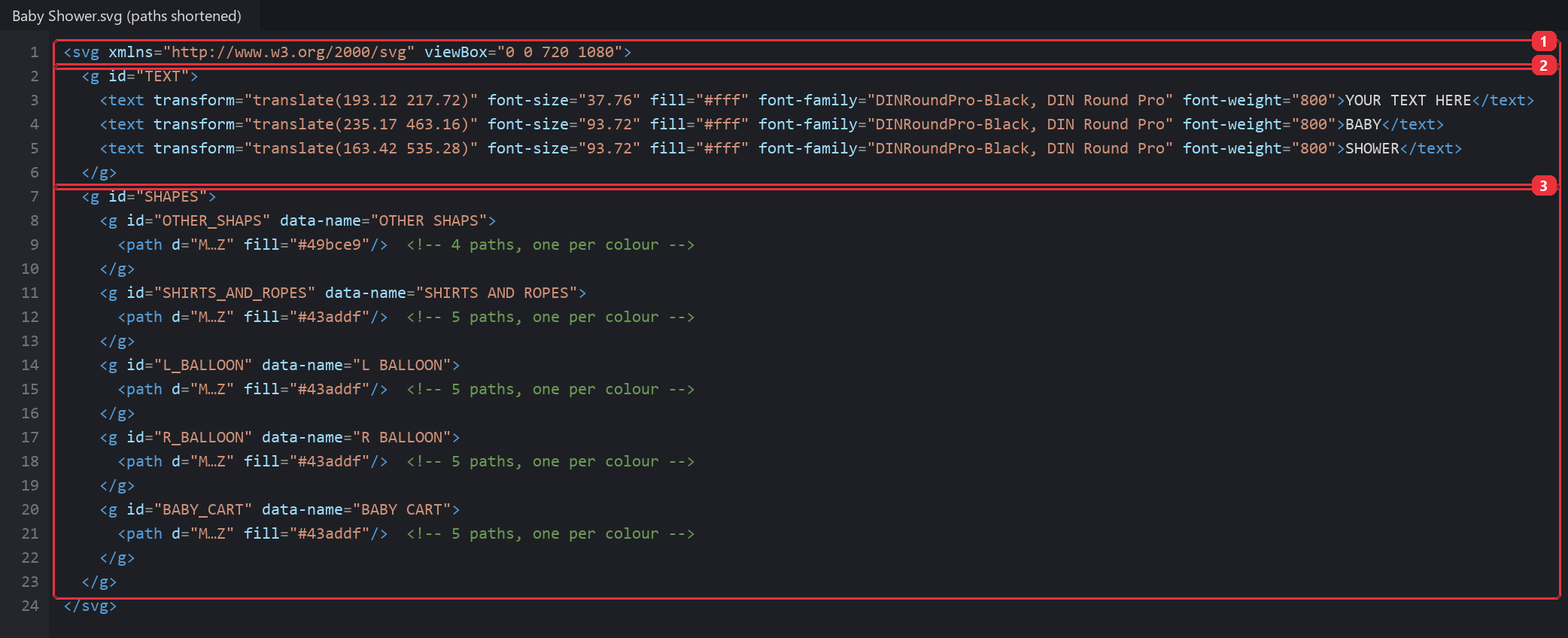
The reference source (paths shortened): (1) viewBoxonly, (2)TEXTgroup with one<text>per line, positioned withtransform="translate(…)", (3)SHAPESgroup with named sub-groups, one path per colour.
<svg xmlns="http://www.w3.org/2000/svg" viewBox="0 0 720 1080">
  <g id="TEXT">
    <text transform="translate(235.17 463.16)" font-size="93.72" fill="#fff"
          font-family="DINRoundPro-Black, DIN Round Pro" font-weight="800">BABY</text>
  </g>
  <g id="SHAPES">
    <g id="L_BALLOON" data-name="L BALLOON">
      <path d="M…Z" fill="#49bce9"/>
      <path d="M…Z" fill="#ed4b67"/>
    </g>
  </g>
</svg>4Guidelines, limitations and recommendations
| Item | Limit or rule |
|---|---|
| Paths | At most 300 per file |
| Structure | TEXT + SHAPES, with named artwork groups inside SHAPES |
| Colour | Flat fills only; no gradients or mesh |
| Not supported | clipPath, masks, images, filters, shadows, <style> tag |
| Text | Live, one <text> per line, fonts from the designer font list |
| Fine detail | Lines at least 1 pt thick, text at least 8 pt, or it may not print cleanly on fabric |
Recommendations
- Open Baby Shower.svg and copy its structure for every new design.
- Use a few solid colours that work on both light and dark garments.
- Name artwork groups by what they are (
L_BALLOON,BABY_CART), notGroup 12. - Don't use team crests, brand logos or characters unless you have the rights to them.
5What to avoid
File and structure
| Avoid | What goes wrong | Do instead |
|---|---|---|
| More than 300 paths | The template loads slowly or fails | Merge same-colour shapes into one compound path per group |
| Many nested layers or unnamed groups | Artwork is hard to manage and may not load | Just TEXT and SHAPES, with named groups inside SHAPES |
| A background rectangle | A coloured box prints on the garment | Leave the background transparent |
<style> tag or CSS classes | Colours are lost or the file fails to load | Save with Presentation Attributes |
| Front and back in one file | The design can't be placed on two print areas | One SVG per print area, named as a pair |
Artwork
| Avoid | What goes wrong | Do instead |
|---|---|---|
| Gradients or mesh gradients | Not supported; the file fails or prints flat | Solid colours |
Clipping masks (clipPath) or opacity masks | Hidden parts reappear or the file fails | Cut shapes to their final outline with Pathfinder |
| Placed or embedded images | Not supported in apparel templates | Redraw as vector shapes |
| Effects, shadows, glows or live strokes | Lost on save or printed incorrectly | Expand them into plain filled shapes |
| Very thin lines or tiny text | Detail fills in or breaks up on fabric | Lines at least 1 pt, text at least 8 pt |
Text
| Avoid | What goes wrong | Do instead |
|---|---|---|
| Text converted to outlines | Shoppers can't change it | Keep text live in the TEXT group |
| Several lines in one text box | Lines can't be edited or moved separately | One text object per line |
| Fonts not in the designer font list | A default font replaces yours | Use only enabled fonts |
6Final checklist
7Troubleshooting
| Problem | Likely cause | Fix |
|---|---|---|
| Template fails to load | Over 300 paths, clipPath, gradients or a <style> tag | Merge paths, remove clipping and gradients, save with Presentation Attributes |
| Colours missing or black | Colours saved in a <style> block or as gradients | Re-save with Presentation Attributes and flat fills |
| Parts of the artwork missing | A clipping mask was removed on load | Release the mask and cut the shapes with Pathfinder |
| Coloured box behind the design | Background rectangle left in | Delete it |
| Text can't be edited | Text converted to outlines | Replace with live text in the TEXT group |
| Wrong font in the designer | Font not enabled | Use an enabled font |
8Documentation and tools
- Baby Shower.svg — the reference template
- Adobe: Save artwork as SVG — SVG options in Illustrator
- Adobe: Compound paths — merging shapes to keep the path count low